|
| htaccess tips and tricks |
| Monday, January 8, 2007 |
redirecting and rewriting
"The great thing about mod_rewrite is it gives you all the configurability and flexibility of Sendmail. The downside to mod_rewrite is that it gives you all the configurability and flexibility of Sendmail."
- Brian Behlendorf, Apache Group
One of the more powerful tricks of the .htaccess hacker is the ability to rewrite URLs. This enables us to do some mighty manipulations on our links; useful stuff like transforming very long URL's into short, cute URLs, transforming dynamic ?generated=page&URL's into /friendly/flat/links, redirect missing pages, preventing hot-linking, performing automatic language translation, and much, much more.Make no mistake, mod_rewrite is complex. This isn't the subject for a quick bite-size tech-snack, probably not even a week-end crash-course, I've seen guys pull off some real cute stuff with mod_rewrite, but with kudos-hat tipped firmly towards that bastard operator from hell, Ralf S. Engelschall, author of the magic module itself, I have to admit that a great deal of it still seems so much voodoo to me.The way that rules can work one minute and then seem not to the next, how browser and other in-between network caches interact with rules and testing rules is often baffling, maddening. When I feel the need to bend my mind completely out of shape, I mess around with mod_rewrite!After all this, it does work, and while I'm not planning on taking that week-end crash-course any time soon, I have picked up a few wee tricks myself, messing around with webservers and web sites, this place.. The plan here is to just drop some neat stuff, examples, things that has proven useful, stuff that works on a variety of server setups; there are apache's all over my LAN, I keep coming across old .htaccess files stuffed with past rewriting experiments that either worked; and I add them to my list, or failed dismally; and I'm surprised that more often these days, I can see exactly why!Nothing here is my own invention. Even the bits I figured out myself were already well documented, I just hadn't understood the documents, or couldn't find them. Sometimes, just looking at the same thing from a different angle can make all the difference, so perhaps this humble stab at URL Rewriting might be of some use. I'm writing it for me, of course. but I do get some credit for this..
# time to get dynamic, see..rewriterule ^(.*)\.htm $1.php
beginning rewriting..
Whenever you use mod_rewrite (the part of apache that does all this magic), you need to do..
you only need to do this once per .htaccess file:
Options +FollowSymlinks RewriteEngine onBefore any ReWrite rules. note: +FollowSymLinks must be enabled for any rules to work, this is a security requirement of the rewrite engine. Normally it's enabled in the root and you shouldn't have to add it, but it doesn't hurt to do so, and I'll insert it into all the examples on this page, just in case. The next line simply switches on the rewrite engine for that folder. if this directive is in you main .htaccess file, then the ReWrite engine is theoretically enabled for your entire site, but it's wise to always add that line before you write any redirections, anywhere.note: while some of the directives on this page may appear split onto two lines, in your .htaccess file, they must exist completely on one line. If you drag-select and copy the directives on this page, they should paste just fine into any text editor.
simple rewriting
Simply put, Apache scans all incoming URL requests, checks for matches in our .htaccess file and rewrites those matching URLs to whatever we specify. something like this..
all requests to whatever.htm will be sent to whatever.php:
Options +FollowSymlinks RewriteEngine on RewriteRule ^(.*)\.htm$ $1.php [nc]Handy for anyone updating a site from static htm (you could use .html, or .htm(.*), .htm?, etc) to dynamic php pages; requests to the old pages are automatically rewritten to our new urls. no one notices a thing, visitors and search engines can access your content either way. leave the rule in; as an added bonus, this enables us to easily split php code and its included html structures into two separate files, a nice idea; makes editing and updating a breeze. The [nc] part at the end means "No Case", or "case-insensitive", but we'll get to the switches later.Folks can link to whatever.htm or whatever.php, but they always get whatever.php in their browser, and this works even if whatever.htm doesn't exist! but I'm straying..As it stands, it's a bit tricky; folks will still have whatever.htm in their browser address bar, and will still keep bookmarking your old .htm URL's. Search engines, too, will keep on indexing your links as .htm, some have even argued that serving up the same content from two different places could have you penalized by the search engines. This may or not bother you, but if it does, mod_rewrite can do some more magic..
this will do a "real" http redirection:
Options +FollowSymlinks rewriteengine on rewriterule ^(.+)\.htm$ http://corz.org/$1.php [r=301,nc]This time we instruct mod_rewrite to send a proper HTTP "permanently moved" redirection, aka; "301". Now, instead of just redirecting on-the-fly, the user's browser is physically redirected to a new URL, and whatever.php appears in their browser's address bar, and search engines and other spidering entities will automatically update their links to the .php versions; everyone wins. and you can take your time with the updating, too.
not-so-simple rewriting
You may have noticed, the above examples use regular expression to match variables. what that simply means is.. match the part inside (.+) and use it to construct "$1" in the new URL. in other words, (.+) = $1 you could have multiple (.+) parts and for each, mod_rewrite automatically creates a matching $1, $2, $3, etc, in your target URL, something like..
a more complex rewrite rule:
Options +FollowSymlinks RewriteEngine on RewriteRule ^files/(.+)/(.+).zip download.php?section=$1&file=$2 [nc]would allow you to present a link as.. http://mysite/files/games/hoopy.zipand in the background have that translated to.. http://mysite/download.php?section=games&file=hoopywhich some script could process. you see, many search engines simply don't follow our ?generated=links, so if you create generating pages, this is useful. However, it's only the dumb search engines that can't handle these kinds of links; we have to ask ourselves.. do we really want to be listed by the dumb search engines? Google will handle a good few parameters in your URL without any problems, and the (hungry hungry) msn-bot stops at nothing to get that page, sometimes again and again and again…I personally feel it's the search engines that should strive to keep up with modern web technologies, in other words; we shouldn't have to dumb-down for them. But that's just my opinion. Many users will prefer /files/games/hoopy.zip to /download.php?section=games&file=hoopy but I don't mind either way. As someone pointed out to me recently, presenting links as/standard/paths means you're less likely to get folks doing typos in typed URL's, so something like..
an even more complex rewrite rule:
Options +FollowSymlinks RewriteEngine on RewriteRule ^blog/([0-9]+)-([a-z]+) http://corz.org/blog/index.php?archive=$1-$2 [nc]would be a neat trick, enabling anyone to access my blog archives by doing.. http://corz.org/blog/2003-novin their browser, and have it automagically transformed server-side into.. http://corz.org/blog/index.php?archive=2003-novwhich corzblog would understand. It's easy to see that with a little imagination, and a basic understanding of posix regular expression, you can perform some highly cool URL manipulations.Here's the very basics of regexp (roughly from the apache mod_rewrite documentation)..
Text:
. Any single character
[chars] Character class: One of chars
[^chars] Character class: None of chars
text1text2 Alternative: text1 or text2 (ie. "or")
Quantifiers:
? 0 or 1 of the preceding text
* 0 or N of the preceding text (hungry)
+ 1 or N of the preceding text
Grouping:
(text) Grouping of text
(either to set the borders of an alternative or
for making backreferences where the nth group can
be used on the target of a RewriteRule with $n)
Anchors:
^ Start of line anchor
$ End of line anchor
Escaping:
\char escape that particular char
(for instance to specify special characters.. ".[]()" etc.)
shortening URLs
One common use of mod_rewrite is to shorten URL's. shorter URL's are easier to remember and, of course, easier to type. an example..
beware the regular expression:
Options +FollowSymlinks RewriteEngine On RewriteRule ^grab(.*) /public/files/download/download.php$1this rule would transform this user's URL.. http://mysite/grab?file=my.zipserver-side, into.. http://mysite/public/files/download/download.php?file=my.zipwhich is a wee trick I use for my distro machine, among other things. everyone likes short URL's. and so will you; using this technique, you can move /public/files/download/ to anywhere else in your site, and all the old links still work fine. just alter your .htaccess file to reflect the new location. edit one line, done. nice. means even when stuff is way deep in your site you can have cool links like this..
//")
//-->
//]]>
/trueview/sample.php
title="(opens in a new window - apple-click (shift-click on peecees) for a new tab instead)">
/trueview/sample.php
and this.
cooler access denied
In part one I demonstrated a drop-dead simple mechanism for denying access to particular files and folders. The trouble with this is the way our user gets a 403 "Access Denied" error, which is a bit like having a door slammed in your face. Fortunately, mod_rewrite comes to the rescue again and enables us to do less painful things. One method I often employ is to redirect the user to the parent folder..
they go "huh?.. ahhh!"
# send them up! Options +FollowSymlinks RewriteEngine on RewriteRule ^(.*)$ ../ [nc]It works great, though it can be a wee bit tricky with the URLs, and you may prefer to use a harder location, which avoids potential issues in indexed directories, where folks can get in a loop..
they go damn! Oh!
# send them exactly there! Options +FollowSymlinks RewriteEngine on RewriteRule ^(.*)$ /comms/hardware/router/ [nc]Sometimes you'll only want to deny access to most of the files in the directory, but allow access to maybe one or two files, or file types, easy..
deny with style!
# users can load only "special.zip", and the css and js files. Options +FollowSymlinks RewriteEngine On rewritecond %{REQUEST_FILENAME} !^(.+)\.css$ rewritecond %{REQUEST_FILENAME} !^(.+)\.js$ rewritecond %{REQUEST_FILENAME} !special.zip$ RewriteRule ^(.+)$ /chat/ [nc]Here we take the whole thing a stage further. Users can access .css (stylesheet) and javascript files without problem, and also the file called "special.zip", but requests for any other filetypes are immediately redirected back up to the main "/chat/" directory. You can add as many types as you need. You could also bundle the filetypes into one line using (or) syntax, though individual lines are perhaps clearer.
prevent hot-linking
Believe it or not, there are some webmasters who, rather than coming up with their own content will steal yours. really! even worse, they won't even bother to copy to their own server to serve it up, they'll just link to your content! no, it's true, in fact, it used to be incredibly common. these days most people like to prevent this sort of thing, and .htaccess is one of the best ways to do it.This is one of those directives where the mileage variables are at their limits, but something like this works fine for me..
how DARE they!
Options +FollowSymlinks # no hot-linking RewriteEngine On RewriteCond %{HTTP_REFERER} !^$ RewriteCond %{HTTP_REFERER} !^http://(www\.)?corz\.org/ [nc] RewriteRule .*\.(gifjpgpng)$
// [nc]")
//-->
//]]>
http://corz.org/img/hotlink.png [nc]
http://corz.org/img/hotlink.png [nc]
You may see the last line broken into two, but it's all one line (all the directives on this page are). let's have a wee look at what it does..We begin by enabling the rewrite engine, as always. The first RewriteCond line allows direct requests (not from other pages - an "empty referrer") to pass unmolested. The next line means; if the browser did send a referrer header, and the word "corz.org" is not in the domain part of it, then DO rewrite this request.The all-important final RewriteRule line instructs mod_rewrite to rewrite all matched requests (anything without "corz.org" in its referrer) asking for gifs, jpegs, or pngs, to an alternative image. mine says "no hotlinking!". You can see it in action here. There are loads of ways you can write this rule. google for "hot-link protection" and get a whole heap. simple is best. you could send a wee message instead, or direct them to some evil script, or something.
lose the "www"
I'm often asked how I prevent the "www" part showing up at my site, so I guess I should add something about that. Briefly, if someone types http://www.corz.org/ into their browser (or uses the www part for any link at corz.org) it is redirected to the plain, rather neat, http://corz.org/ version. This is very simple to achieve, like this..
beware the regular expression:
Options +FollowSymlinksRewriteEngine onrewritecond %{http_host} ^www\.corz\.org [nc]rewriterule ^(.*)$ http://corz.org/$1 [r=301,nc]You don't need to be a genius to see what's going on here. There are other ways you could write this rule, but again, simple is best. Like most of the examples here, the above is pasted directly from my own main .htaccess file, so you can be sure it works perfectly.
automatic translation
If you don't read English, or some of your guests don't, here's a neat way to have the wonderful Google translator provide automatic on-the-fly translation for your site's pages. Something like this..
they simply add their country code to the end of the link, or you do..
Options +FollowSymlinksRewriteEngine onRewriteRule ^(.*)-fr$ http://www.google.com/translate_c?hl=fr&sl=en&u=http://corz.org/$1 [r,nc]RewriteRule ^(.*)-de$ http://www.google.com/translate_c?hl=de&sl=en&u=http://corz.org/$1 [r,nc]RewriteRule ^(.*)-es$ http://www.google.com/translate_c?hl=es&sl=en&u=http://corz.org/$1 [r,nc]RewriteRule ^(.*)-it$ http://www.google.com/translate_c?hl=it&sl=en&u=http://corz.org/$1 [r,nc]RewriteRule ^(.*)-pt$ http://www.google.com/translate_c?hl=pt&sl=en&u=http://corz.org/$1 [r,nc]You can create your menu with its flags or whatever you like, and add the country code to end of the links.. Want to see this page in french?Although it is very handy, and I've been using it here for a couple of years here at the org, for my international blog readers, all two of them, heh. Almost no one knows about it, mainly because I don't have any links . One day I'll probably do a wee toolbar with flags and what-not. Perhaps not. Trouble is, the Google translator stops translating after a certain amount of characters, though these same rules could easily be applied to other translators. And if you find a good one, one that will translate a really huge document on-the-fly, do let me know!If you wanted to be really clever, you could even perform some some kind of IP block check and present the correct version automatically, but that is outside the scope of this document. note: this may be undesirable for pages where technical commands are given (like this page) because the commands will also be translated. "RewriteEngine dessus" will almost certainly get you a 500 error page!
httpd.conf
Remember, if you put these rules in the main server conf file (usually httpd.conf) rather than an .htaccess file, you'll need to use ^/... ... instead of ^... ... at the beginning of the RewriteRule line, in other words, add a slash.
inheritance..
If you are creating rules in sub-folders of your site, you need to read this.You'll remember how rules in top folders apply to all the folders inside those folders too. we call this "inheritance". normally this just works. but if you start creating other rules inside subfolders you will, in effect, obliterate the rules already applying to that folder due to inheritance, or "decendancy", if you prefer. not all the rules, just the ones applying to that subfolder. a wee demonstration..Let's say I have a rule in my main /.htaccess which redirected requests for files ending .htm to their .php equivalent, just like the example at the top of this very page. now, if for any reason I need to add some rewrite rules to my /osx/.htaccess file, the .htm >> .php redirection will no longer work for the /osx/ subfolder, I'll need to reinsert it, but with a crucial difference..
this works fine, site-wide, in my main .htaccess file
# main (top-level) .htaccess file.. # requests to file.htm goto file.php Options +FollowSymlinks rewriteengine on rewriterule ^(.*)\.htm$ http://corz.org/$1.php [r=301,nc]Here's my updated /osx/.htaccess file, with the .htm >> .php redirection rule reinserted..
but I'll need to reinsert the rules for it to work in this sub-folder
# /osx/.htaccess file.. Options +FollowSymlinks rewriteengine on rewriterule some rule that I need here rewriterule some other rule I need here rewriterule ^(.*)\.htm$ http://corz.org/osx/$1.php [r=301,nc]Spot the difference in the subfolder rule, highlighted in red. you must add the current path to the new rule. now it works again, and all the osx/ subfolders will be covered by the new rule. if you remember this, you can go replicating rewrite rules all over the place.
troubleshooting tips..
rewrite logging..When things aren't working out as you'd expect, the first thing you need to do is enable rewrite logging. I'll assume you are testing these mod_rewrite directives on your development mirror, or similar setup, and can access the main httpd.conf file. If not, why not? Testing mod_rewrite rules on your live domain is just a wee bit on the silly side, no? Anyway, here goes, put somewhere at the foot of your http.conf file..
Expect large log files..
# # ONLY FOR TESTING REWRITE RULES!!!!! # RewriteLog "/tmp/rewrite.log" #RewriteLogLevel 9 RewriteLogLevel 5Set the file location and logging level to suit your own requirements. If your rule is causing your Apache to loop, load the page, immediately hit your browser's "STOP" button, and then restart Apache. All within a couple of seconds. Your rewrite log will be full of all your diagnostic information, and your server will carry on as before.Setting a value of 1 gets you almost no information, setting the log level to 9 gets you GIGABYTES! So you must remember to comment out these rules and restart Apache when you are finished because, not only will rewrite logging create space-eating files, it will seriously impact your web server's performance. RewriteLogLevel 5 is very useful, I find.
Fatal RedirectionIf you start messing around with 301 redirects [r=301], aka. "Permanently Redirected", and your rule isn't working, you could give yourself some serious headaches..Once the browser has been redirected permanently to the wrong address, if you then go on to alter the wonky rule, your browser will still be redirected to the old address (because it's a browser thing), and you may even go on to fix, and then break the rule all over again without ever knowing it. Changes to 301 redirects can take a long time to show up in your browser.Solution: restart your browser, or use a different one.Better Solution: Use [r] instead of [r=301] while you are testing . When you are 100% certain the rule does exactly as it's expected to, then switch it to [r=301] for your live site.
conclusion
In short, mod_rewrite allows you to send browsers from anywhere to anywhere. You can create rules based not simply on the requested URL, but also on such things as IP address, browser agent (send old browsers to different pages, for instance), and even the time of day; the possibilities are practically limitless.The ins-and outs of mod_rewrite syntax are topic for a much longer document than this, and if you fancy experimenting with more advanced rewriting rules, I urge you to check out the apache documentation. If you have apache installed on your system, there will likely be a copy of the apache manual, right here, and the excellent mod_rewriting guide, lives right here. do check out the URL Rewriting Engine notes for the juicy syntax bits. That's where I got the cute quote for the top of the page, too. |
 |
|
|
|
| The Registry and the Taskbar and System Tray |
| Monday, January 22, 2007 |
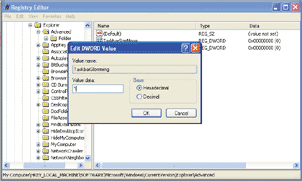
The Taskbar and System Tray will both give you easy access to the files and applications currently running in Windows. However, by making alterations to the Registry you’ll be able to change their behaviour. The functions, together with the way that certain items are displayed, can be enhanced to suit the way that you work.
Right-click the Taskbar, choose Properties and select the Taskbar tab. If you don’t want the taskbar to become overrun with too many like for like applications you can check the option 'Group similar taskbar buttons’. By editing the Registry you can tweak this setting slightly and choose the number of application windows that need to be open before they are amalgamated into one tab. To do this go to HKEY_CURRENT_USER \ Software \ Microsoft \ Windows \ CurrentVersion \ Explorer \ Advanced and create a DWORD value called TaskbarGroupSize. The value that you enter here will be the number of windows that you want to be open at the point when they start getting grouped together. For example, if you want six windows of any one application type to be opened before grouping begins, then enter 6.
Click any tab on the Taskbar and you’ll have immediate access to the application that lies behind it. The only problem is, that if you have a large number of items on the Taskbar, it may not be easy to find the program you want at a glance. There’s a solution at least for anyone using Outlook 2002. It’s a way of minimising the program to the System Tray rather than to the Taskbar. Open the Registry at HKEY_CURRENT_USER \ Software \ Microsoft \ Office \ 10.0 \ Outlook \ Preferences and in the right pane right-click and create a new DWORD value called MinToTray with a value of 1. You can revert the behaviour of Outlook to normal by changing the value of this setting to 2.
Taskbar alerts
When a window is opened it will either appear over an existing window or it will appear minimised on the toolbar and flash when it’s available to use. This Registry alteration will enable you to control this behaviour. It’s ideal for dealing with pop-up windows, and will enable you to keep them on the Taskbar rather than having them obscure whatever you’re looking at. There are two settings to adjust depending on which way you want new windows to appear. The first controls the way in which a new window appears. Go along to HKEY_CURRENT_USER \ Control Panel \ Desktop and create a DWORD value called ForegroundLockTimeout, or modify the existing one. The value that you give it will determine the amount of time the new window appears over the old one. Enter a value of 0 and the new window will go over the top immediately. Enter the default value of 200000 (0x00030d40 hex) and the new window will appear on top for 200,000 milliseconds and then minimise to the Taskbar where it will flash. This flashing is controlled by the next tweak which will set the number of flashes. Create or modify the DWORD value ForegroundFlashCount and set a value for the number of flashes you require. 0 will make it flash infinitely or you can go for the default value of 3.
If you’ve used Windows XP for some time, you can probably do without the balloon tips that are displayed when, in most cases, nothing more than a minor event has occurred with your system. Getting rid of these is straightforward. Go along to HKEY_CURRENT_USER \ Software \ Microsoft \ Windows \ CurrentVersion \ Explorer \ Advanced and edit or create the existing DWORD value EnableBalloonTips. A value of 0 will disable tips while 1 will ensure that they’re activated again.
The System Tray can soon get filled up with all sorts of icons. This adjustment will ensure that any inactive icons are automatically hidden from view when they’re not active. You’ll need to go along to
HKEY_CURRENT_USER \ Software \ Microsoft \ Windows \ CurrentVersion \ Explorer and create or edit the DWORD value EnableAutoTray. To hide inactive icons set a value of 1 and to display them again, enter 2.
User interference
If someone else has access to your PC it can be annoying to find that your desktop settings have been altered in some way. By editing the Registry you’ll be able to fix the location of the Taskbar and stop others from moving it. First locate the key HKEY_CURRENT_USER \ Software \ Microsoft \ Windows \ CurrentVersion \ Policies \ Explorer. Edit or create the DWORD value called LockTaskbar and give it a value of 0 to ensure it stays in a fixed position. To unlock the Taskbar change this value to 1.
Right-click the Taskbar, System Tray and Start button and you’ll have access to various context menus. These will give you the chance to change display settings. You can prevent this from happening by disabling the Taskbar context menus. On a per user basis, log in as the user then edit
HKEY_CURRENT_USER \ Software \ Microsoft \ Windows \ CurrentVersion \ Policies \ Explorer. To make the change apply system wide you’ll need to go to HKEY_LOCAL_MACHINE \ Software \ Microsoft \ Windows \ CurrentVersion \ Policies \ Explorer. Create or modify the existing value called NoTrayContextMenu and give it a value of 1 to ensure it’s disabled. |
| |
|
|
|
| Web Traffic Secrets |
| Wednesday, July 18, 2007 |
Web Traffic Secrets
FreeViral.com is ranked by Alexa as being in the top 1% of all trafficked
websites in the world (and that's out of 40 million sites!) Now you can get in on this incredible traffic explosion, Free!
Q: Can I really get over 1,000,000 visitors every month?
A: Yes! Guaranteed Visitors, and it's absolutely Free!
In less than 5 Minutes
you can have your own
Free Viral Marketing mini site....
and then watch your traffic EXPLODE !!
"This Free system is like VIAGRA for your website!"
-M.S. Blumenthal, eHits
This system is FREE
Quick and easy sign-up... get your own viral webpage in under 5 minutes!
This "Viral Marketing" system works for you around-the-clock to bring you traffic!
The viral nature of this system ensures that your traffic will exponentially increase!
W A R N I N G !!
IMPORTANT! If you never had a high-traffic website then please read this: Be aware that your ISP may bill you for "high bandwidth charges" due to excess visitor traffic to your website. Once you see your hit counter begins to soar, ask your ISP what is your maximum monthly bandwidth and throughput, and what the charges are for additional traffic. Depending on your ISP and your hosting plan, typical monthly throughput might be 1 GigaByte/month, 5 Gigs/month, or 10 Gigs/month. Of course the actual amount of monthly bandwitdh you use will depend on the number of visitors to your site, multiplied by the amount of bytes (HTML documents and graphic images) served to each visitor's browser.
You may want to consider upgrading to another hosting plan with your ISP, or changing to another ISP that offers cheaper monthly bandwidth. NOTE: In most cases, webmasters don't mind paying for extra bandwidth, because the flood of traffic to their website usually results in them making more moolah.
Dear Webmaster,
Double a penny every day for a month and what do you get? Over ten million dollars! That's the power of exponential growth, and the Internet is the one medium that can harness that power... for FREE!
FreeViral.com fully exploits this phenomenon to help generate MASSIVE VISITOR TRAFFIC for your website!
So how does this system work?
Our system is similar to others you may have seen on the Internet with one major difference... our system guarantees traffic to your website! The concept is simple; at the bottom of this page you will notice 6 classified ads.
When you sign up, you will receive a website just like this one with your classified ad in the #1 position! The ad that was in the #1 position will move down to the #2 position, the 2nd ad to the #3 position, and so on with the last classified ad being taken off of the page.
When someone signs up from your website, their classified ad will be placed in the #1 spot with your ad moving to the #2 spot, the 2nd ad moving down to the #3 spot and so on. By the time your classified ad reaches the #6 spot, you will have noticed an amazing amount of FREE traffic!
How do I get guaranteed traffic?
When someone signs up from your site, they must first click on your classified ad which will open a new window leading to your main website. They will have to wait a few seconds for the code to appear on a separate frame at the top of the screen.
While they wait, they will have time to read what you have to offer! This can equate to more sales, downline members, affiliate sign-ups, ezine subscribers, etc.! Each classified ad will have to be clicked on to retrieve a unique code meaning that you will receive FREE Traffic throughout all 6 levels!!!
How much FREE traffic can I expect?
Lets be extremely conservative and assume that your page and everybody else's pages only get 10 sign-ups:
CONSERATIVE EXAMPLE
10 people sign up from you: 1 x 10 = Your ad on 10 new sites
10 people sign up from each of them: 10 x 10 = Your ad on 100 new sites
10 people sign up from each of them: 10 x 100 = Your ad on 1,000 new sites
10 people sign up from each of them: 10 x 1,000 = Your ad on 10,000 new sites
10 people sign up from each of them: 10 x 10,000 = Your ad on 100,000 new sites
10 people sign up from each of them: 10 x 100,000 = Your ad on 1,000,000 new sites
Total: 10+100+1,000+10,000+100,000+1,000,000
= 1,111,110 WEBSITES DISPLAYING YOUR AD!
This system works amazingly well on the Internet. There is nothing to slow it down. You can setup your viral webpage today and have 5 or 10 sign-ups within a few days! With it being so easy to join you could literally have over 50,000 sites displaying your ad within a short time!
The system works extremely well so be prepared for some massive visitor traffic to your site! Remember, this system doesn't just give you ad exposures, it generates GUARANTEED VISITS to your site, because participants are required to visit your website. And that translates to GUARANTEED MASSIVE VISITOR TRAFFIC TO YOUR SITE !!
We also provide FREE Tools to help promote your FreeViral.com webpage! Ready to start receiving your FREE TRAFFIC Labels: Secrets, Traffic, Web |
| |
|
|
|
| Module Rewrite |
| Monday, January 8, 2007 |
Module Rewrite
Welcome to mod_rewrite, voodoo of URL manipulation.
This document describes how one can use Apache's mod_rewrite to solve typical URL based problems webmasters are usually confronted with in practice. The Apache module mod_rewrite is a module which provides a powerful way to do URL manipulations. With it you can nearly do all types of URL manipulations you ever dreamed about. The price you have to pay is to accept complexity, because mod_rewrite is not easy to understand and use for the beginner.
NOTE: Depending on your server configuration it can be necessary to change the examples for your situation. Always try to understand what it really does before you use it. Bad use would lead to deadloops and will hang the server.
The most example's can be used in the .htaccess file while other ones only in the Apache htppd.conf file.
top
RewriteCond
The RewriteCond directive defines a rule condition. Preserve a RewriteRule with one or more RewriteCond directives. The following rewriting rule is only used if its pattern matches the current state of the URI and if these additional conditions apply too.
You can set special flags for condition pattern by appending a third argument to the RewriteCond directive. Flags is a comma-separated list of the following flags:
[NC] (No Case)
This makes the condition pattern case insensitive, no difference between 'A-Z' and 'a-z'.
[OR] (OR next condition)
Used to combinate rule conditions with a OR.
top
RewriteRule
The RewriteRule directive is the real rewriting.
You can set special flags for condition pattern by appending a third argument to the RewriteCond directive. Flags is a comma-separated list of the following flags:
[R] (force Redirect)
Redirect the URL to a external redirection. Send the HTTP response, 302 (MOVED TEMPORARILY).
[F] (force URL to be Forbidden)
Forces the current URL to be forbidden. Send the HTTP response, 403 (FORBIDDEN).
[G] (force URL to be Gone)
Forces the current URL to be gone. Send the HTTP response, 410 (GONE).
[L] (last rule)
Forces the rewriting processing to stop here and don't apply any more rewriting rules.
[P] (force proxy)
This flag forces the current URL as a proxy request and put through the proxy module mod_proxy.
top
Regular expressions
Some hints about the syntax of regular expressions:
Text:
. Any single character
[chars] One of chars
[^chars] None of chars
text1|text2 text1 or text2
Quantifiers:
? 0 or 1 of the preceding text
* 0 or N of the preceding text (N > 0)
+ 1 or N of the preceding text (N > 1)
Grouping:
(text) Grouping of text
Anchors:
^ Start of line anchor
$ End of line anchor
Escaping:
\ char escape that particular char
top
Condition pattern
There are some special variants of CondPatterns. Instead of real regular expression strings you can also use one of the following:
< Condition (is lower than Condition)
Treats the Condition as a string and compares it to String. True if String is lower than Condition.
> Condition (is greater than Condition)
Treats the Condition as a string and compares it to String. True if String is greater than CondPattern.
= Condition (is equal to Condition)
Treats the Condition as a string and compares it to String. True if String is equal to CondPattern.
-d (is directory)
Treats the String as a pathname and tests if it exists and is a directory.
-f (is regular file)
Treats the String as a pathname and tests if it exists and is a regular file.
-s (is regular file with size)
Treats the String as a pathname and tests if it exists and is a regular file with size greater than zero.
-l (is symbolic link)
Treats the String as a pathname and tests if it exists and is a symbolic link.
-F (is existing file via sub request)
Checks if String is a valid file and accessible via all the server's currently configured access controls for that path. Use it with care because it decreases your servers performance!
-U (is existing URL via sub request)
Checks if String is a valid URL and accessible via all the server's currently configured access controls for that path. Use it with care because it decreases your servers performance!
NOTE: You can prefix the pattern string with a '!' character (exclamation mark) to specify a non-matching pattern.
top
Protecting your images and files from linking
DESCRIPTION: In some cases other webmasters are linking to your download files or using images, hosted on your server as inline-images on their pages.
RewriteEngine On
RewriteCond %{HTTP_REFERER} !^$ [NC]
RewriteCond %{HTTP_REFERER} !^http://domain.com [NC]
RewriteCond %{HTTP_REFERER} !^http://www.domain.com [NC]
RewriteCond %{HTTP_REFERER} !^http://212.204.218.80 [NC]
RewriteRule ^.*$ http://www.domain.com/ [R,L]
EXPLAIN: In this case are the visitors redirect to http://www.domain.com/ if the hyperlink has not arrived from http://domain.com, http://www.domain.com or http://212.204.218.80.
top
Redirect visitor by domain name
DESCRIPTION: In some cases the same web site is accessible by different addresses, like domain.com, www.domain.com, www.domain2.com and we want to redirect it to one address.
RewriteEngine On
RewriteCond %{HTTP_HOST} !^www.domain.com$ [NC]
RewriteRule ^(.*)$ http://www.domain.com/$1 [R,L]
EXPLAIN: In this case the requested URL http://domain.com/foo.html would redirected to the URL http://www.domain.com/foo.html.
top
Redirect domains to other directory
RewriteEngine On
RewriteCond %{HTTP_HOST} ^www.domain.com$
RewriteCond %{REQUEST_URI} !^/HTML2/
RewriteRule ^(.*)$ /HTML2/$1
top
Redirect visitor by user agent
DESCRIPTION: For important top level pages it is sometimes necesarry to provide pages dependend on the browser. One has to provide a version for the latest Netscape, a version for the latest Internet Explorer, a version for the Lynx or old browsers and a average feature version for all others.
# MS Internet Explorer - Mozilla v4
RewriteEngine On
RewriteCond %{HTTP_USER_AGENT} ^Mozilla/4(.*)MSIE
RewriteRule ^index\.html$ /index.IE.html [L]
# Netscape v6.+ - Mozilla v5
RewriteCond %{HTTP_USER_AGENT} ^Mozilla/5(.*)Gecko
RewriteRule ^index\.html$ /index.NS5.html [L]
# Lynx or Mozilla v1/2
RewriteCond %{HTTP_USER_AGENT} ^Lynx/ [OR]
RewriteCond %{HTTP_USER_AGENT} ^Mozilla/[12]
RewriteRule ^index\.html$ /index.20.html [L]
# All other browsers
RewriteRule ^index\.html$ /index.32.html [L]
EXPLAIN: In this case we have to act on the HTTP header User-Agent. If the User-Agent begins with Mozilla/4 and is MS Internet Explorer (MSIE), the page index.html is rewritten to index.IE.html and the rewriting stops. If the User-Agent begins with Mozilla/5 and is Netscape (Gecko), the page index.html is rewritten to index.NS5.html. If the User-Agent begins with Lynx/ or Mozilla/1,2, the page index.html is rewritten to index.20.html. All other browsers receive page index.32.html
|
| |
|
|
|
| Services You Can Disable |
| Monday, January 1, 2007 |
There are quite a few services you can disable from starting automatically.
This would be to speed up your boot time and free resources.
They are only suggestions so I suggestion you read the description of each one when you run Services
and that you turn them off one at a time.
Some possibilities are:
Alerter - Sends alert messages to specified users that are connected to the server computer.
Application Management - Allows software to tap directly into the Add/Remove Programs feature via the Windows Installer technology.
Background Intelligent Transfer Service - The Background Intelligent Transfer service is used by programs (such as Windows AutoUpdate) to download files by using spare bandwidth.
Clipbook - ClipBook permits you to cut and paste text and graphics over the network.
Error Reporting Service - Allows applications to send error reports to Microsoft in the event of an application fault.
Fast User Switching - Windows XP allows users to switch quickly between accounts, without requiring them to log off.
Help and Support - Allows the XP Built-in Help and Support Center to run.
IMAPI CD-Burning COM Service - You don't need this if you have other software to create CDs.
Indexing Service - Indexes contents and properties of files on local and remote computers; provides rapid access to files through flexible querying language.
IP SEC - Manages IP security policy and starts the ISAKMP/Oakley (IKE) and the IP security driver. If you are not on a domain, you likely don't need this running.
Messenger - Transmits net send and Alerter service messages between clients and servers. This is how a lot of pop-up windows start appearing on your desktop.
Net Logon - Supports pass-through authentication of account logon events for computers in a domain. If you are not on a domain, you don't need this running
Network DDE - Provides network transport and security for Dynamic Data Exchange (DDE) for programs running on the same computer or on different computers.
NT LM Security Support Provider - Provides security to remote procedure call (RPC) programs that use transports other than named pipes.
Performance Logs and Alerts - Collects performance data from local or remote computers based on preconfigured schedule parameters, then writes the data to a log or triggers an alert. If you don't need to monitor your performance logs, then you don't need this service.
Portable Media Serial Number - Retrieves the serial number of any portable music player connected to your computer
QOS RSVP - Provides network signaling and local traffic control setup functionality for QoS-aware programs and control applets.
Remote Desktop Help Session Manager - Manages and controls Remote Assistance. If you are not using Remote Desktop you don't need this service.
Remote Registry - Enables remote users to modify registry settings on this computer.
Routing & Remote Access - Offers routing services to businesses in local area and wide area network environments. Allows dial-in access.
Secondary Login - Enables starting processes under alternate credentials. This is what allows you to run an application as another user.
Smart Card - Manages access to smart cards read by this computer.
Smart Card Helper - Enables support for legacy non-plug and play smart-card readers used by this computer.
SSDP Discovery Service - Enables discovery of UPnP devices on your home network.
TCP/IP NetBIOS Helper - Enables support for NetBIOS over TCP/IP (NetBT) service and NetBIOS name resolution. This should not be needed in today's network environment.
Telnet - Enables a remote user to log on to this computer and run programs, and supports various TCP/IP Telnet clients.
Uninterruptible Power Supply Service - Manages an uninterruptible power supply (UPS) connected to the computer.
Universal Plug and Play Device Host - Provides support to host Universal Plug and Play devices
Upload Manager - Manages synchronous and asynchronous file transfers between clients and servers on the network.
Volume Shadow Copy Service - Manages and implements Volume Shadow Copies used for backup and other purposes.
Web Client - Enables Windows-based programs to create, access, and modify non-local files across the Internet.
Wireless Zero Configuration - Provides automatic configuration for the 802.11 adapters
WMI Performance Adapter - Provides performance library information from WMI HiPerf providers. |
| |
|
|
|
| Disable Taskbar Windows XP |
| Tuesday, January 30, 2007 |
Taskbar
Taskbar - Context Menus - Disable Taskbar Context Menus
This setting removes the context menus (right click on the taskbar) for the system tray, including the Start button, Tab control, and Clock. Open your registry (Start/Run/Regedit) and find the key below. You may need to create the key if it does not already exist.
Create a new DWORD value, or modify the existing value, called 'NoTrayContextMenu' and edit the value according to the settings below.
[HKEY_CURRENT_USER\Software\Microsoft\Windows\CurrentVersion\Policies\Explorer]
[HKEY_LOCAL_MACHINE\Software\Microsoft\Windows\CurrentVersion\Policies\Explorer]
Value Name: NoTrayContextMenu
Data Type: REG_DWORD (DWORD Value)
Value Data: (0 = disabled, 1 = enabled)
Exit your registry, you may need to restart or log out of Windows for the change to take effect.
Taskbar - Hide Clock (Notification Area)
This setting allows you to remove the clock from the system tray on the taskbar. Open your registry (Start/Run/Regedit) and find the key below. You may need to create the key if it does not already exist.
Create a new DWORD value, or modify the existing value, called 'HideClock' and edit the value according to the settings below.
[HKEY_CURRENT_USER\Software\Microsoft\Windows\CurrentVersion\Policies\Explorer]
[HKEY_LOCAL_MACHINE\Software\Microsoft\Windows\CurrentVersion\Policies\Explorer]
Value Name: HideClock
Data Type: REG_DWORD (DWORD Value)
Value Data: (0 = Show Clock, 1 = Hide Clock)
Exit your registry, you may need to restart or log out of Windows for the change to take effect.
Taskbar - Remove the Toolbars on the Taskbar
This restriction is used to remove all the toolbars, including Quick Launch, from the taskbar. It also restricts the ability to re-enable them. Open your registry (Start/Run/Regedit) and find the key below. You may need to create the key if it does not already exist.
Create a new DWORD value, or modify the existing value, called 'NoToolbarsOnTaskbar' and edit the value according to the settings below.
[HKEY_CURRENT_USER\Software\Microsoft\Windows\CurrentVersion\Policies\Explorer]
[HKEY_LOCAL_MACHINE\Software\Microsoft\Windows\CurrentVersion\Policies\Explorer]
Value Name: NoToolbarsOnTaskbar
Data Type: REG_DWORD (DWORD Value)
Value Data: (0 = default, 1 = enable restriction)
Exit your registry, you may need to restart or log out of Windows for the change to take effect.
Taskbar - Remove Notification Tray Items from Taskbar
This setting removes and restricts access to the tray icons normally found next to the clock on the taskbar. Open your registry and find the key below. You may need to create the key if it does not already exist.
Create a new DWORD value, or modify the existing value, called 'NoTrayItemsDisplay' and edit the value according to the settings below.
[HKEY_CURRENT_USER\Software\Microsoft\Windows\CurrentVersion\Policies\Explorer]
[HKEY_LOCAL_MACHINE\Software\Microsoft\Windows\CurrentVersion\Policies\Explorer]
Value Name: NoTrayItemsDisplay
Data Type: REG_DWORD (DWORD Value)
Value Data: (0 = default, 1 = enable restriction) |
| |
|
|
|
| Plesk Awstats Install |
| Monday, July 9, 2007 |
Plesk Awstats Install
SolutionBelow are the steps to install Awstats on your Unix Plesk server -
1) you need to install awstats, the best way to install it is using awstats rpm, so run this command first.
# wget http://www.netsonic.net/files/awstats-6.4-1.noarch.rpm
if you want to use other version of the above rpm, find the URL first and replace this one.
2) to install run this command
# rpm -ivh awstats-6.4-1.noarch.rpm
3) then you will need to setup awstats_configure.pl run:
# cd /usr/local/awstats/tools
and
# ./awstats_configure.pl
you will be asked about your domain and path to httpd.conf file so enter
/etc/httpd/conf/httpd.conf
4) you need to provide correct path to access_log file, so open conf file for your domain using vi text editor using this command:
# vi /etc/awstats/awstats.www.yourdomain.com.conf
change log path to:
LogFile="/home/httpd/vhosts/yourdomain.com/statistics/logs/access_log"
and close editor with "ZZ" command.
5) All you need to do now is to update awstats data base using one of these two commands
for each domain
# /usr/local/awstats/wwwroot/cgi-bin/awstats.pl -update -config=www.yourdomain.com
or if you want to update all at the same time us this
# /usr/local/awstats/tools/awstats_updateall.pl now
it would be nice if you add these commands to cron tab
now use this url to see if everything is ok
http://localhost/awstats/awstats.pl?config=www.yourdomain.comLabels: Awstats, Install, Plesk |
| |
|
|
|
| Create Configure User Accounts in Windows XP |
| Wednesday, August 8, 2007 |
open the User Accounts tool, open Control Panel from the Start menu, and then double click User Accounts.
To create a new user account, follow these steps:
1. Click "Create a new account" in the "Pick a task" list box.
2. Type the name that you want to use for the account, and then click Next.
3. Select the desired account type, and then click Create Account.
To make changes to an account, follow these steps:
1. Click "Change an account" in the "Pick a task" list box.
2. Click the account that you want to change.
3. Select the item that you would like to change:
- Click "Change the name" to change the name that appears on the Welcome screen for the account.
- Click "Change the picture" to change the picture that is used to represent the user account. You can use any image file on the computer for the user's picture.
- Click "Change the account type" to change the account type to increase or decrease the user's rights on the computer.
- Click "Create/change the password" to create or change the password for the user and create or change the password hint.
- Click "Delete the account" to delete the user account from the computer. When you delete the account, you are given the
option to save the user's files on the computer.
Note: You can not delete the account for a user that is currently logged on to the computer.Labels: Accounts, Windows |
| |
|
|
|
| Printing a Directory |
| Tuesday, January 23, 2007 |
WindowsXP does not allow you to use previously describe methods for printing the contents of a directory.
To do this requires the creation of a small batch file which is then added to your right-click options.
Batch File
On the root of the C: drive, create a batch file called print_directory.bat with the following lines:
@echo off
dir %1 /o:g > c:\directory.txt
start /w notepad /p c:\directory.txt
del c:\directory.txt
exit
Note: dir %1 /o:g will print with any directories listed first. You can add whatever other switches you like
Adding to the Explorer Right Click
Start the Explorer
Go to Tools / Folder Options
On the File Types tab, click File Folder.
Click Advanced button and then click New.
In the Action box, type Print Directory (or whatever text you want to appear).
In the Application used to perform action box, type C:\print_directory.bat, and then click OK.
Click OK, click OK, and then click Close
Fixing the Registry
Sometimes after adding the right click with the Explorer, the default setting for opening a folder is changed.
To correct this:
Start Regedit
Go to HKEY_CLASSES_ROOT \ Directory \ shell
Edit the default value to be explorer or none |
| |
|
|
|
| Speeding Up Network Browsing |
| Monday, January 1, 2007 |
There are a lot of things which can negatively impact how fast XP will browse network shares.
One has been previously covered regarding browsing to Win9x computers.
Other things you can try, especially when there is slow browsing to network shares with a lot of files:
1. Remove current shortcuts in My Network Places
2. Change the registry so shared folders on remote computers are not automatically added to My Network Places when you even open a document from that shared folder
Start Regedit
Create a DWORD value:
HKEY_Current_User \ Software \ Microsoft \ Windows \ CurrentVersion \ Policies \ Explorer \ NoRecentDocsNetHood to 1.
I have also seen setting the following help as well.
HKEY_Current_User \ Software \ Microsoft \ Windows \ CurrentVersion \ Policies \ Explorer \ UseDesktopIniCache to 1.
Download Reg file to do both
3. Increase the amount of data is buffered at one time to send to a client. On the computer with the shared directory:
Start Regedit
Go to HKEY_LOCAL_MACHINE\SYSTEM\CurrentControlSet\Services\LanmanServer\Parameters
Create a DWORD Key called SizReqBuf
Give it a value of Hex FFFF |
| |
|
|
|
| Move the Taskbar |
| Wednesday, January 10, 2007 |
SUMMARY: Has your Windows XP Taskbar jumped to the top or side of your screen? This tip shows how to bring it back to the bottom.
Did your Windows XP Taskbar somehow move to the top or side of your screen and you want it moved back to the bottom?
To prevent accidental changes or movement of the Windows XP Taskbar (in previous versions of Windows, many people accidentally moved the taskbar all over the screen), it is by default locked. This way, no changes can be done, such as resizing, moving, adding toolbars, etc., until it is manually unlocked. However, accidents can still happen.
1. To move the Windows XP Taskbar, you must temporarily unlock it. To unlock the taskbar, just right-click on the clock in the System Tray area of the taskbar (on the bottom-right of your screen) and uncheck "Lock the taskbar".
2. Now, click and hold on an empty area of the taskbar, then move your mouse down to the bottom of the screen. Your taskbar should move with your mouse.
3. Re-lock the Windows XP Taskbar after making changes. Right-click on the clock in the System Tray area of the taskbar (on the bottom-right of your screen) and check "Lock the taskbar". |
| |
|
|
|
| Red Hat launches Global Desktop |
| Friday, May 11, 2007 |
BANGALORE: Red Hat has announced the launch of new client product, Global Desktop, which delivers a user experience with an enterprise-class suite of productivity applications.
Red Hat collaborated with Intel to enable the design, support and distribution of Global Desktop to be close to the customer. In addition, Red Hat and Intel are taking advantage of Global Desktop's high performance and minimal hardware requirements to support a wide range of Intel's current and future desktop platforms, including the classmate, affordable, community and low-cost PC lines, Red Hat said in a statement.
The company also showcased several examples of its strategy of building forward-looking solutions that change the traditional notion of desktop computing for specific audiences.
"To address the demand for Linux on desktop systems by our customers in emerging markets, Intel and Red Hat worked together to deliver a pre-certified, cost-effective solution for Intel's reseller channel to extend their business value," said Steve Dallman, general manager, Intel Worldwide Reseller Channel Organization.
"Running Red Hat Global Desktop on Intel processor-powered PCs provides full access to applications and rich experiences to users across local markets, education, small businesses and government agencies," he added.
|
| |
|
|
|
| Add or Remove Frequently Used Software Shortcuts on the Start Menu |
| Wednesday, January 10, 2007 |
SUMMARY: Customize your Windows XP Start menu - let it show more (or fewer) frequently-used software shortcuts.
By default, when you click on the Windows XP "Start" menu, shortcuts to programs that Windows XP believes you most-frequently access will appear, based on usage habits. This can be quite convenient in that you don't need to navigate multiple menus to find the software you need most. However:
1. You may find that not enough shortcuts are visible on the "Start" menu and want more.
2. For privacy reasons, especially if you share your computer with others, you may not want people to know the names of software packages you use the most.
You can tweak the number of programs Windows XP shows directly on the "Start" menu.
1. Right-click on an empty area of the taskbar, choosing "Properties".
2. When the "Taskbar and Start Menu Properties" multi-tabbed dialog box appears, click the "Start Menu" tab.
3. Click "Customize" next to "Start Menu".
4. When the "Customize Start Menu" dialog box appears, next to "Number of programs on Start menu", choose a number from 0-30, as desired.
5. If you need to clear the shortcuts completely, click the "Clear List" button.
6. Click "OK" to close the dialog box. |
| |
|
|
|
| Unlock RegistryTools |
| Saturday, January 20, 2007 |

Unlock.inf
[Version]
Signature="$Chicago$"
Provider=Symantec
[DefaultInstall]
AddReg=UnhookRegKey
[UnhookRegKey]
HKLM, Software\CLASSES\batfile\shell\open\command,,,"""%1"" %*"
HKLM, Software\CLASSES\comfile\shell\open\command,,,"""%1"" %*"
HKLM, Software\CLASSES\exefile\shell\open\command,,,"""%1"" %*"
HKLM, Software\CLASSES\piffile\shell\open\command,,,"""%1"" %*"
HKLM, Software\CLASSES\regfile\shell\open\command,,,"regedit.exe "%1""
HKLM, Software\CLASSES\scrfile\shell\open\command,,,"""%1"" %*"
HKCU, Software\Microsoft\Windows\CurrentVersion\Policies\System,DisableRegistryTools,0x00000020,0
|
1.Save file to Unlock.inf
2.Click Right On Unlocl.inf Select Install
Version VBs unlock.vbs
'Enable/Disable Registry Editing tools By Gitem
Option Explicit
'Declare variables
Dim WSHShell, n, MyBox, p, t, mustboot, errnum, vers
Dim enab, disab, jobfunc, itemtype
Set WSHShell = WScript.CreateObject("WScript.Shell")
p = "HKCU\Software\Microsoft\Windows\CurrentVersion\Policies\System\"
p = p & "DisableRegistryTools"
itemtype = "REG_DWORD"
mustboot = "Log off and back on, or restart your pc to" & vbCR & "effect the changes"
enab = "ENABLED"
disab = "DISABLED"
jobfunc = "Registry Editing Tools are now "
'This section tries to read the registry key value. If not present an
'error is generated. Normal error return should be 0 if value is
'present
t = "Confirmation"
Err.Clear
On Error Resume Next
n = WSHShell.RegRead (p)
On Error Goto 0
errnum = Err.Number
if errnum <> 0 then
'Create the registry key value for DisableRegistryTools with value 0
WSHShell.RegWrite p, 0, itemtype
End If
'If the key is present, or was created, it is toggled
'Confirmations can be disabled by commenting out
'the two MyBox lines below
If n = 0 Then
n = 1
WSHShell.RegWrite p, n, itemtype
Mybox = MsgBox(jobfunc & disab & vbCR & mustboot, 4096, t)
ElseIf n = 1 then
n = 0
WSHShell.RegWrite p, n, itemtype
Mybox = MsgBox(jobfunc & enab & vbCR & mustboot, 4096, t)
End If
|
Save the file to the folder of your choice. Double click the VBS file. The VB Script file will check for the appropriate value and if not found will create it. If the value was found, it will be toggled to its opposite state and you will be informed that you need to log off/back on or restart your computer. One note. This change is made in HKCU\Software\Microsoft\Windows\CurrentVersion\Policies\System. Disabling the tools takes effect immediately. Enabling requires a restart. This script can be viewed in Notepad or any text editor, as to the specific Registry key and value that are updated. Your antivirus software may report this script as potentially malicious, or a possible virus. This is because the script writes to the System Registry.
|
| |
|
|
|
| Recycle Bin Edits |
| Friday, March 2, 2007 |
Fooling with the recycle bin. Why not make the icon context menu act like other icon context menu's.
Add rename to the menu:
[HKEY_CLASSES_ROOT\CLSID\{645FF040-5081-101B-9F08-00AA002F954E}\ShellFolder]
"Attributes"=hex:50,01,00,20
Add delete to the menu:
[HKEY_CLASSES_ROOT\CLSID\{645FF040-5081-101B-9F08-00AA002F954E}\ShellFolder]
"Attributes"=hex:60,01,00,20
Add rename and delete to the menu:
[HKEY_CLASSES_ROOT\CLSID\{645FF040-5081-101B-9F08-00AA002F954E}\ShellFolder]
"Attributes"=hex:70,01,00,20
Restore the recycle bin to win 95 defaults including un-deleting the icon after deletion:
... Restore the icon.
[HKEY_LOCAL_MACHINE\SOFTWARE\Microsoft\Windows\CurrentVersion\explorer\Desktop\NameSpace\{645FF040-5081-101B-9F08-00AA002F954E}]
@="Recycle Bin"
... reset win 95 defaults
. [HKEY_CLASSES_ROOT\CLSID\{645FF040-5081-101B-9F08-00AA002F954E}\ShellFolder]
"Attributes"=hex:40,01,00,20
Other edits to the recycle bin icon:
[HKEY_CLASSES_ROOT\CLSID\{645FF040-5081-101B-9F08-00AA002F954E}\ShellFolder]
"Attributes"=hex:40,01,01,20 ... standard shortcut arrow
"Attributes"=hex:40,01,02,20 ... another shortcut arrow
"Attributes"=hex:40,01,04,20 ... and another shortcut arrow
"Attributes"=hex:40,01,08,20 ... make it look disabled (like it's been cut)
I added the above edits for fun. But it gets you thinking.
Note: Adding rename and delete to the context menu takes effect instantly. To restore the icon after deletion requires screen refresh (F5). |
| |
|
|
|
| Adding Options to the Right-Click of the Start Menu |
| Saturday, January 6, 2007 |
To add an option to the Right-Click of the Start button: - Go to Control Panel, View, Options
- Click on the File Types Tab
- Scroll down until you see File Folder
- Click on Edit
- Click on New
- Type in the Name you want to in the Action box
- Type in the Application you want to use
A good option to add is an MS-DOS Prompt: Try this c:\command.com /k cd %1
It also puts the shortcut on a regular folder.
This command will open a DOS window with that folder as the current directory. |
| |
|
|
|
| Remove the Run Command from the Start Menu |
| Wednesday, January 10, 2007 |
SUMMARY: Help prevent computer neophytes from running random software by removing the "Run" command from the Windows XP Start menu.
Configuring a computer for a tech novice and don't want them accidentally poking around the internals? One way to help prevent them from trying to run software they weren't meant to execute is to disable the "Run" command from the Windows XP Start Menu.
1. Right-click the "Start" button, selecting "Properties".
2. When the "Taskbar and Start Menu Properties" multi-tabbed dialog box appears, click the "Start Menu" tab if it is not already selected.
3. Click the "Start Menu" radio button (if it is not already selected) and click "Customize".
4. When the "Customize Start Menu" dialog box appears, click the "Advanced" tab.
5. Underneath "Start menu items", scroll down to "Run command" and uncheck it.
6. Click "OK" on the dialog boxes to close them.
Note that this will not completely secure a system from those who know what they are doing. Making this change will not prevent users from going through the above steps and re-adding the "Run" command, nor will it prevent them from running software via the Windows Task Manager's "File" - "New Task (Run") option. However, this may prevent some computer neophytes from executing software that could damage their system. |
| |
|
|
|
| Changing or Removing the Start Menu Icons |
| Saturday, January 6, 2007 |
- Download Microangelo and install it.
- Create a blank.ico file.
- Put it in a directory (C:\Windows. Then double click on the Microangelo Engineer to run it.
- When you get it up on the screen click on the "start" tab. You will see a list of all the icons in the start menu.
- Highlight the first one (programs) and select "Change". It will bring up a dialog box - select "browse".
- Go to the directory that contains the blank icon and select it. Hit OK until you get back to the main
- Engineer window and do all the rest exactly the same way.
- When you have finished changing them all to the blank icon, Hit "Apply".
- Hit your start button and look to see if all the icons are invisible. (They should be.)
- Close out Micro Engineer and you're finished.
|
| |
|
|
|
| Easy Way to Share Multiple Folders |
| Monday, January 1, 2007 |
If you need to share multiple folders, running the program SHRPUBW.EXE will bring up a simple dialog box to let you:
Browse to the folder you want to share
Enter in a Share name
Ender in a Share description
Set permissions. Several choices are available
Restart the process from within the same program |
| |
|
|
|
| Adding Drive to the SendTo List |
| Saturday, January 6, 2007 |
- I have recently found that if you want to send something from A: drive or from any where to any drive, you can just make a short cut of that drive in subdirectory SENDTO.
- For example I have two hard drives, a Floppy Drive, and a CDROM
- After I have make a copy of each of my drive I will be able to send a whole directory of E:\XXX from the CDROM drive to A: drive or any other drive that i have had made the short c t in the SENDTO subdir of WINDOWS.
|
| |
|
|
|
|
| Previous Post |
|
| Archives |
|
|
| Links |
|
|
| Powered by |

|
|


